I always liked taking notes. Since I started university, I developed my approach to note taking, that evolved until what I used today. It all started as a requirement for me. University was hard, and I was not very good, especially given that I decided to started studying engineering coming from a psychology background. To have a chance to graduate, I had to create a framework useful for keeping track and organizing my notes. Not with big surprise, the framework I adopted was based on pen and paper. It worked, and I’m very happy about the resources I created for all the courses I took. I still have them, and sometimes I like to flip through the notes to recall some of the concepts my brain is now fighting to remove to free-up some space.
Despite the very nice result of taking (only) physical notes, the approach was not perfect for a bunch of reasons:
- To consult the notes, the physical book or papers had to be reachable. Now that I live in Berlin, for me it is impossible to access all the books I left in Milan.
- Not very easy to share. In university I was used to share the books after passing the exams to other colleagues. Unfortunately, I never received back some of them after graduating.
- It is not easy to create connections, citations and reuse resources with everything on paper. This results in scattered or repeated information that are not very easy to keep updated or improved over time.
The three points cited above where not a big issue while a was student, but they started to be very limiting during the professional growth. Moreover, the framework was by no means leveraging all the standard tools available on a personal computer. I’m not referring to only Large Language Models (LLMs), which are an amazing addition for a modern notes taking/writing workflow, but it was missing also very simple tools like the possibility to fuzzy find for note names or contents.
Don’t get me wrong, taking physical notes is amazing, and still my favorite approach. When I have to study something, I always start by writing down concepts and equations on white paper. However, after discovering the tools I will mentioned in a bit, I realised that was possible to genuinely improve my system, which is now based on a mixture of physical and digital tools.
Tools
Below a list of tools I used in my notes taking and sharing workflow:
- Neovim: a modern and hyperextensible Vim-based text editor.
- Zotero: a personal research assistant that helps you keep track and organize your research.
- Eternal Spring: my personal blog where I publish writings or notes I want to share.
- Pandoc: a document converter used to convert from
.mdnotes to.pdf. - tmux: a terminal multiplexer.
Pandoc and the blog are something that I personal use to share on the web or specific file format easily printable, but are not required for a simple note taking system.
Zotero
Add the Better BibText for Zotero plugin to simplify citation keys management.
From the plugin you can customize how the citation key is generate. I personally
left the default style auth.lower + shorttitle(3,3) + year.
At this point, it is possible to create a BibText reference that is automatically updated whenever a new item is added or modified. Open Zotero and:
- Right click on the Library or collection you want to export. I’m personally exporting the entire library.
- From the pop-up menu select Export Library ….
- Select Better BibText as format
- Toggle the Keep updated flag, and press Ok.
- Select where to store you bibliography source and you are ready to go.
In my case, I called the file references.bib and stored in at the root of the
notes repository. This way is easier for me to keep track of all the knowledge
base and remember to sync with the remote all the times it is updated.
Neovim
Neovim is a text editor, it means that it is a tool to view and edit text. It seems pretty basic right? And it is! But, despite basic, it has two amazing features that completely changed my approach of writing on a computer:
- Is based on vim motion.
- It is highly customizable by writing by writing lua code
These two concept are what really revolutionize how I started taking notes. Instead of Neovim, a couple of years I was using Obsidian, a free and extensible software to take notes. It was great, thanks to it, I realized how important is to manage
For managing the citation, I created a script in my notes plugin to fuzzy find
in the references.bib file the citation key via grep, and automatically
add the citation into the file.
- Fuzzy finder.
Pandoc
- Hook into metadata during conversion and customization.
tmux
A very useful command in tmux while you are writing articles and coding, is
<prefix-key> + z. This command allows you to focus full terminal on the
currently active pane. A found it very handy when I want to work on a specific
task and I don’t have to switch between coding and notes frequently.
Handling images
Images are always one of the most important part of notes and articles we write, and for this reason it is important to understand how to manage them properly. An amazing tool to work with images is the open source tool ImageMagick. We can use ImageMagick to get images information like the size and memory requirements:
identify <IMAGE_NAME>Or we can resize an image:
magick <IMAGE_NAME> -resize 1200x <NEW_IMAGE_NAME_AND_FORMAT>Env variable
- Env variable pointing to the folder I used for WIP notes and completed notes
- 4 variables I use.
Knowledge base structure
- Folder with slug containing file slug and files
- inbox and resources
Structure
- Linter and formatters
- Use of frontmatter
Other tools
- Touch typing
- Split keyboard
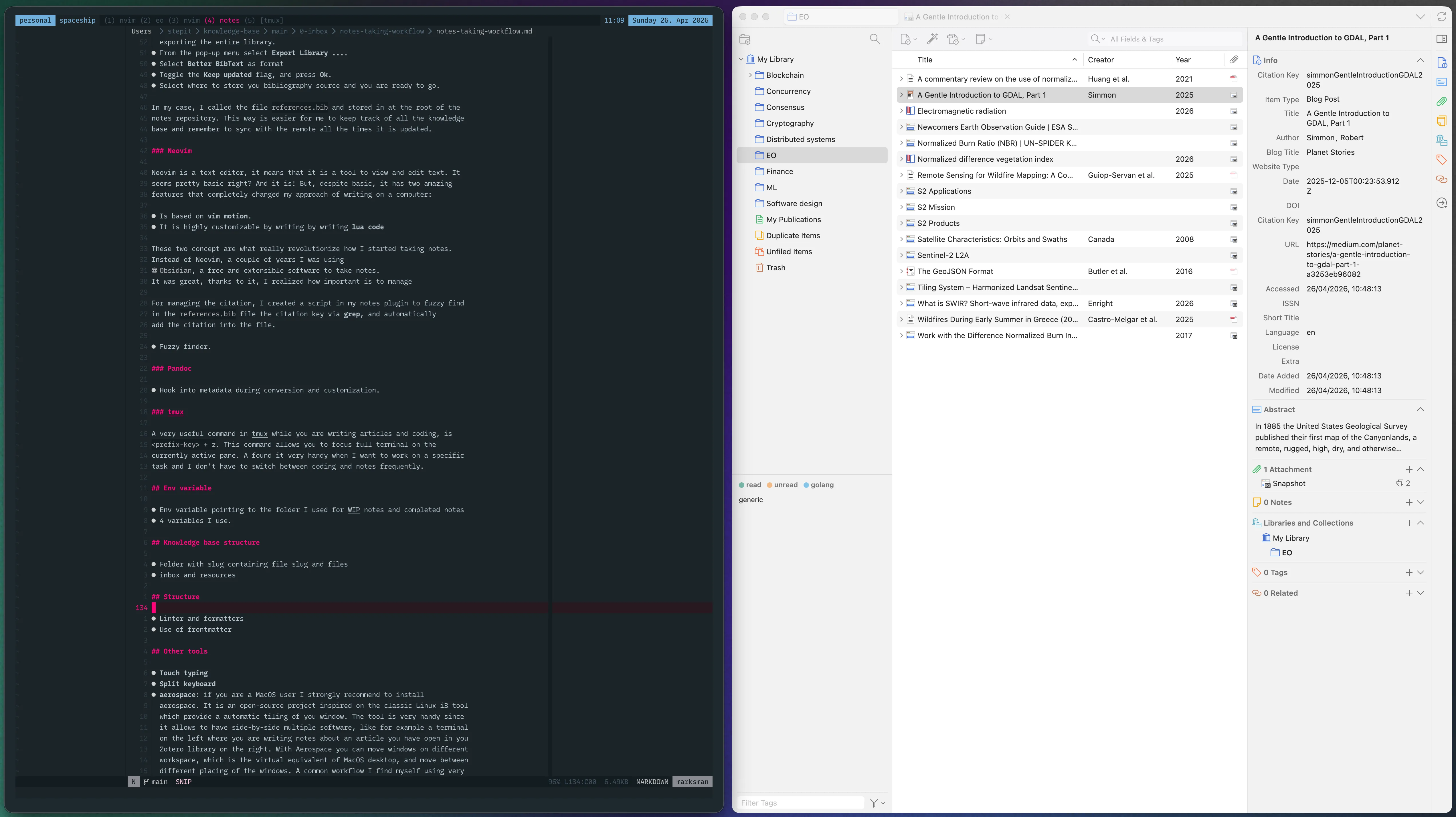
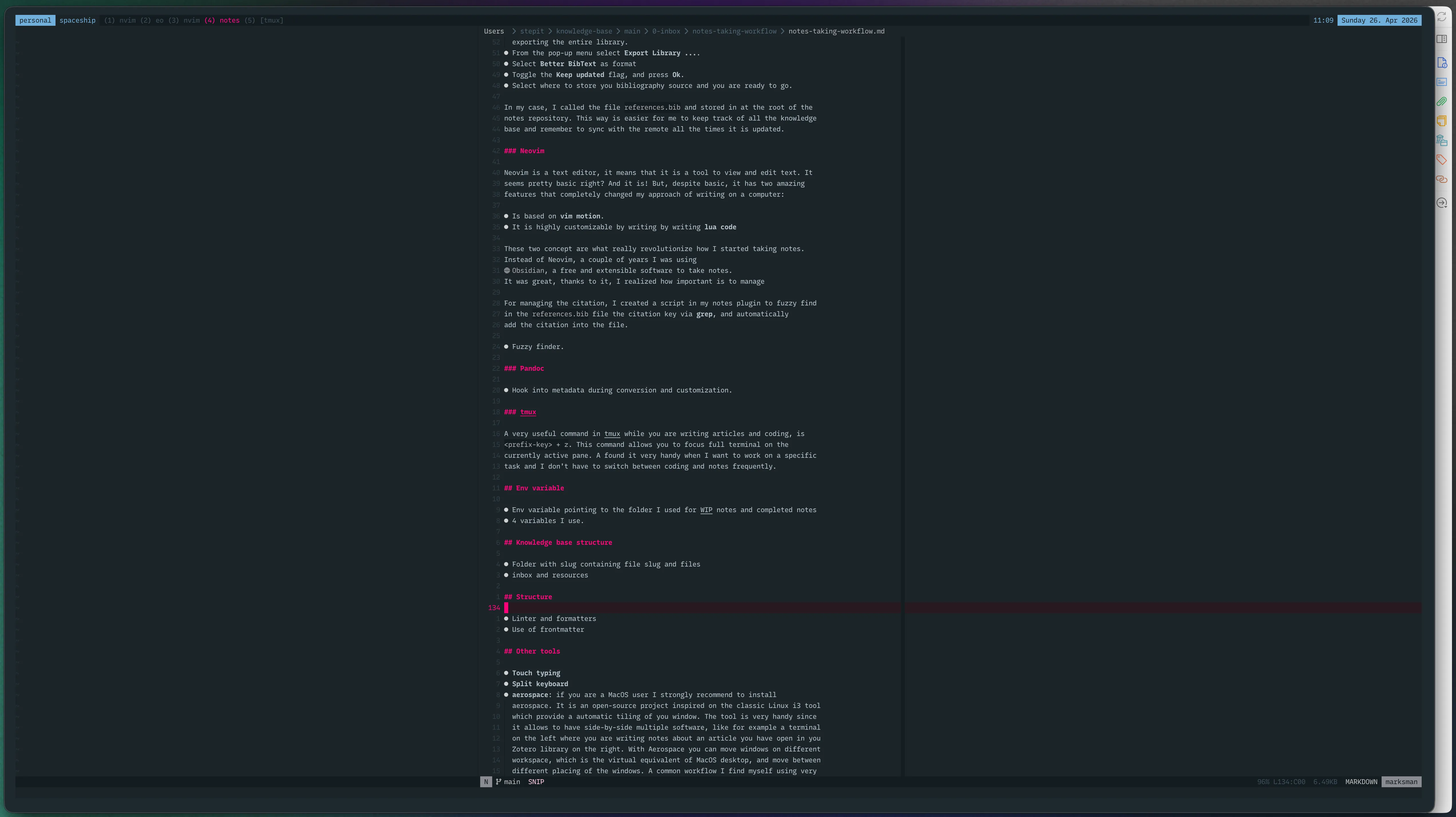
- aerospace: if you are a MacOS user I strongly recommend to install aerospace. It is an open-source project inspired on the classic Linux i3 tool which provide a automatic tiling of you window. The tool is very handy since it allows to have side-by-side multiple software, like for example a terminal on the left where you are writing notes about an article you have open in you Zotero library on the right. With Aerospace you can move windows on different workspace, which is the virtual equivalent of MacOS desktop, and move between different placing of the windows. A common workflow I find myself using very frequently is from a side-by-side configuration i cited a few lines above, to the stacked visualization to have my terminal with the text in the center of the screen. You can switch between the two configurations with a single keystroke! And well, if you are on Linux I would recommend you i3..